Overview
WC Universal Import Export is a premium WooCommerce migration and store-management plugin. It lets store owners export and import products, orders, users/customers, coupons, product reviews, product categories, custom fields, and metadata using CSV or JSON files.
meta_json column.Requirements
| Requirement | Minimum / Notes |
|---|---|
| WordPress | 6.2 or newer |
| WooCommerce | Required and must be active |
| PHP | 7.4 or newer |
| User capability | Admin users with manage_woocommerce |
| License | A valid Freemius license is required for premium import/export actions |
Installation
- In WordPress admin, go to Plugins > Add New > Upload Plugin.
- Upload the plugin ZIP file.
- Activate the plugin.
- Make sure WooCommerce is installed and active.
- Enter your license key when the Freemius activation screen appears.
- Go to WooCommerce > Import Export.
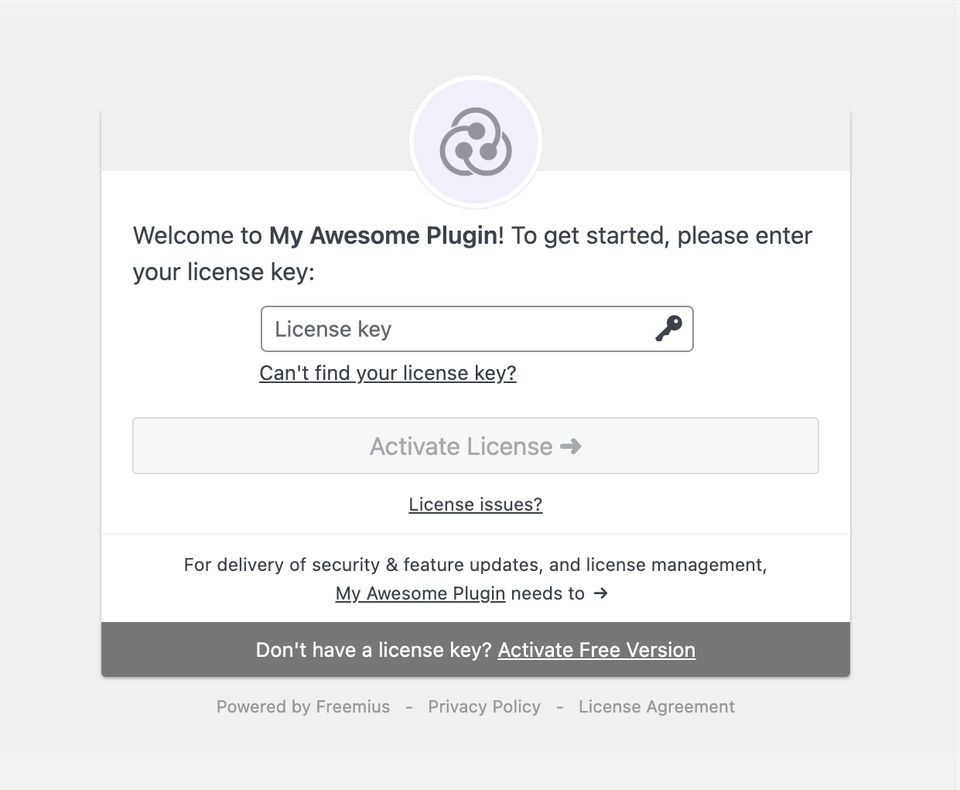
Freemius license activation screen. Customers paste their license key here to unlock the premium plugin.
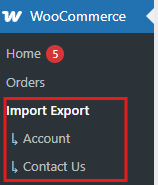
After activation, customers can open the plugin from WooCommerce > Import Export. Freemius account and contact links appear below it.
License Activation
This is a paid Freemius version. Customers do not need to edit wp-config.php or add developer constants. They only need the license key from their purchase email or Freemius account.
- Install and activate the plugin.
- Paste the license key into the Freemius license activation screen.
- Click Activate License.
- Open WooCommerce > Import Export.
License-gated actions
- Export data
- Import data
- Run queued background jobs
- Premium metadata workflows
Admin Dashboard After Activation
After a valid license is activated, the plugin dashboard opens as a guided workspace with modern cards for export, import, templates, logs, background jobs, and safety guidance.
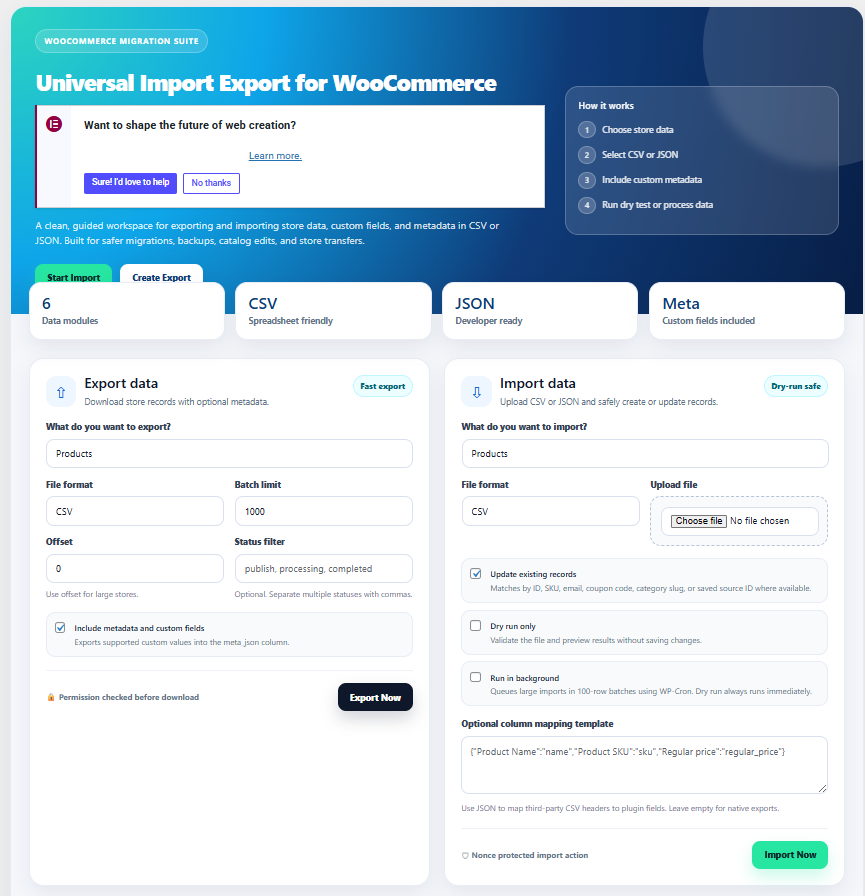
Main plugin dashboard with export and import panels.
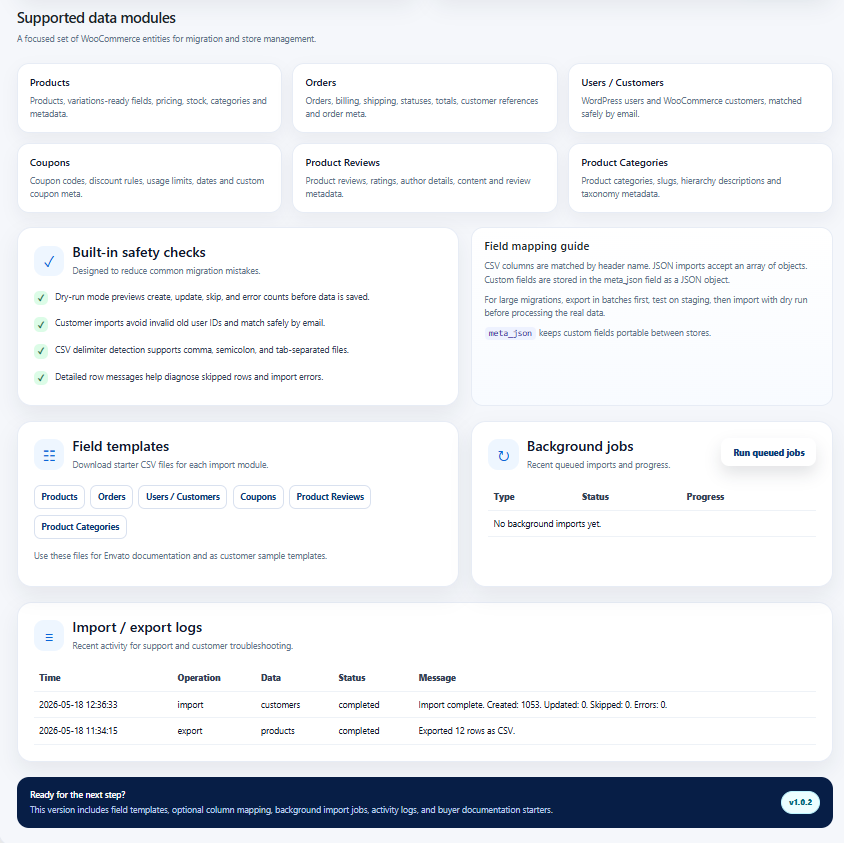
Supported modules, templates, safety checks, background jobs, and activity logs.
Supported Data Types
| Data type | Matching rule | Common fields | Metadata |
|---|---|---|---|
| Products | ID or SKU | Name, SKU, status, prices, stock, categories, tags | meta_json |
| Orders | Existing order ID, otherwise new order | Status, customer, totals, billing, shipping | meta_json |
| Users / Customers | Existing user ID or email | Email, username, name, billing and shipping details | meta_json |
| Coupons | ID or coupon code | Code, amount, discount type, usage limits, expiry | meta_json |
| Product Reviews | Comment ID | Product ID, author, rating, content, approval status | meta_json |
| Product Categories | Slug | Name, slug, parent slug, description | meta_json |
Exporting Data
- Go to WooCommerce > Import Export.
- In the Export Data panel, choose the data type.
- Select CSV or JSON.
- Set a limit and offset when exporting large stores.
- Optionally enter a status filter, such as
publish,completed, orprocessing. - Click Export Now.
Large exports
For large stores, export in batches. Example: export 500 rows with offset 0, then 500 rows with offset 500, then 500 rows with offset 1000.
| Field | Purpose |
|---|---|
| Limit | Maximum number of records to export. |
| Offset | Number of records to skip before export starts. |
| Status filter | Optional filter for statuses when supported by the selected data type. |
Importing Data
- Go to WooCommerce > Import Export.
- In the Import Data panel, choose the matching data type.
- Select the file format that matches your upload.
- Upload the CSV or JSON file.
- Enable Dry run first to validate the file without saving data.
- Enable Update existing records when the import should update matching records.
- Use background mode for larger files.
- Click Import Now.
What skipped rows mean
Rows are usually skipped when the plugin finds an existing matching record and update mode is disabled, or when a row does not contain enough identifying information.
CSV and JSON Format
CSV
CSV files must include a header row. The plugin can detect common delimiters including comma, semicolon, and tab.
sku,name,regular_price,stock_quantity,meta_json
TSHIRT-001,Blue T-Shirt,29.99,50,"{"_custom_label":"Summer"}"
JSON
JSON imports should be an array of objects where each object represents one record.
[
  {
    "sku": "TSHIRT-001",
    "name": "Blue T-Shirt",
    "regular_price": "29.99",
    "stock_quantity": "50",
    "meta_json": { "_custom_label": "Summer" }
  }
]
Metadata column
The meta_json field stores custom fields as a JSON object. During import, those values are written back to the correct WordPress object meta table.
Column Mapping
Column mapping lets you import CSV files generated by another plugin, marketplace, supplier, or ERP system without renaming every header manually.
Use a JSON object where the left side is the source CSV header and the right side is the plugin target field.
{
  "Product Name": "name",
  "SKU": "sku",
  "Price": "regular_price",
  "Stock": "stock_quantity"
}Downloadable Templates
The plugin includes CSV templates for all supported modules. Templates help customers build valid import files quickly.
products-template.csvorders-template.csvcustomers-template.csvcoupons-template.csvreviews-template.csvcategories-template.csv
Templates are available from the plugin dashboard and are also included in the plugin package under the samples folder.
Background Imports
Background imports queue the uploaded file and process it through WP-Cron in batches. This is useful for larger files where a normal browser request may time out.
- Select Run in background before starting an import.
- The plugin creates a queued job.
- WP-Cron processes the job in batches.
- If the site has low traffic, click Run queued jobs from the dashboard.
Logs and Troubleshooting Data
The plugin records recent actions to help with support and debugging.
| Log type | What it records |
|---|---|
| Exports | Selected data type, format, and result. |
| Imports | Created, updated, skipped, and error counts. |
| Templates | Template downloads. |
| Jobs | Queued and processed background jobs. |
Ask customers to send the log result, plugin version, WooCommerce version, and a small sample import file when reporting issues.
Safe Migration Checklist
- Make a full database and file backup before real imports.
- Test on a staging site before using production data.
- Run dry run first and check the result counts.
- Use unique SKUs for products and unique emails for customers.
- Validate
meta_jsonbefore import. - Import customers before orders when migrating a whole store.
- Use small batches for very large stores.
Troubleshooting
| Issue | Likely cause | Fix |
|---|---|---|
| All rows skipped | Existing records were found and update mode is disabled. | Enable Update existing records or remove matching IDs/SKUs/emails when creating new records. |
| Invalid user ID | Imported customer IDs belong to another site. | Import by email. The plugin creates missing users and stores the source ID as reference. |
| License key is not accepted | The key may belong to another product, plan, or site limit. | Check the license in your Freemius account, then retry from the plugin license screen. |
| Background jobs do not run | WP-Cron is disabled or no site traffic. | Use the manual Run queued jobs button or configure server cron. |
| Metadata not importing | Invalid JSON in meta_json. | Validate the JSON and escape quotes correctly in CSV files. |
FAQ
Does the plugin require WooCommerce?
Yes. WooCommerce must be installed and active.
Can the plugin import custom fields?
Yes. Custom fields and metadata are imported through the meta_json field.
Do customers need to edit wp-config.php?
No. Customers only need to install the plugin and activate the Freemius license key.
Which file formats are supported?
The current version supports CSV and JSON.
Does it support scheduled imports?
Not yet. The current version supports manual imports and background queue processing.
Support and Updates
Support should include plugin installation help, licensing questions, bug reports, and guidance for documented import/export features.
Support should not include custom development, server configuration, theme customization, unrelated third-party conflicts, or manual data cleanup services unless offered separately.
Recommended support request details:
- Plugin version
- WordPress and WooCommerce versions
- PHP version
- Selected data type and format
- Dry-run result
- Small sample of the import file
- Error message or screenshot